EzTransitions


EzTransitions is a Unity package that provides a simple and flexible way to create and manage scene transitions. It includes tools for creating custom transitions and utilities for handling asynchronous scene loading with transition effects.
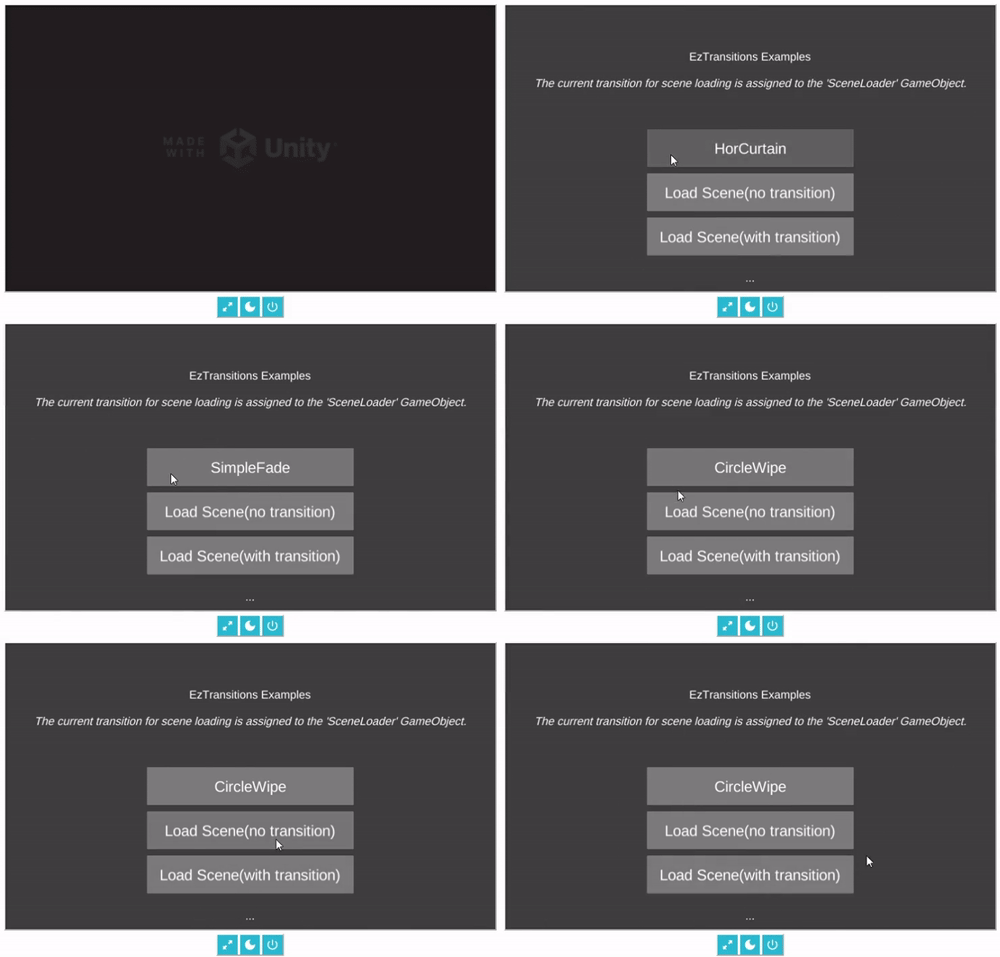
Features
- Asynchronous scene loading with optional transition effects.
- Customizable transition settings.
- Easy-to-use editor tools for creating new transitions.
- Elements for managing transitions and scene loading.
Installation
Inside the Unity Editor using the Package Manager:
- Click the (+) button in the Package Manager and select "Add package from Git URL" (requires Unity 2019.4 or later).
- Paste the Git URL of this package into the input box: https://github.com/ebukaracer/EzTransitions.git#upm
- Click Add to install the package.
- If your project uses Assembly Definitions, make sure to add a reference to this package under Assembly Definition References.
- For more help, see this guide.
Setup
After installation, use the menu options in the following order:
Racer > EzTransitions > Import Elementsto import the prebuilt elements(prefabs) of this package, which will speed up your workflow(required).Racer > EzSaver > Add SceneLoader Prefab to Sceneto add the manager gameobject required for scene loading with optional transition.Racer > EzSaver > Add TransitionManager Prefab to Sceneto add the manager gameobject required for performing transitions.
Usage
After you have imported the packages Elements, navigate to the prefabs directory:
- Ensure
SceneLoadergameobject is present in the scene. - Optionally manage the use of transitions(while loading) in the inspector while the prefab is selected.
- Quickly load into the next scene asynchronously, using
SceneLoader.Instancefrom your script:
using Racer.EzTransitions.Core;
using UnityEngine;

public class LoadSceneExample : MonoBehaviour
{
    public void LoadToScene()
    {
        // Load a scene by name
		SceneLoader.Instance.LoadSceneAsync("ExampleScene");

        // Or load by its build index
        SceneLoader.Instance.LoadSceneAsync(1);
    }
}
- Ensure
TransitionManagergameobject is present in the scene. - Perform in/out transitions using
TransitionManager.Instancefrom your script:
using Racer.EzTransitions.Core;
using UnityEngine;

public class SimpleTransitionExample : MonoBehaviour
{
    [SerializeField] private Transition transition;
    [SerializeField] private float transitionDelay = 0.5f;

    void Start()
    {
        // Performs a transition(assigned in the inspector)
    	TransitionManager.Instance.Transit(transition, transitionDelay);
    }
}
Samples and Best Practices
- In the case of any updates to newer versions, use the menu option:
Racer > EzTransitions > Import Elements(Force). - Optionally import this package's demo from the package manager's
Samplestab. - To remove this package completely(leaving no trace), navigate to:
Racer > EzTransitions > Remove package
Contributing
Contributions are welcome! Please open an issue or submit a pull request.